What is UpscaleAI
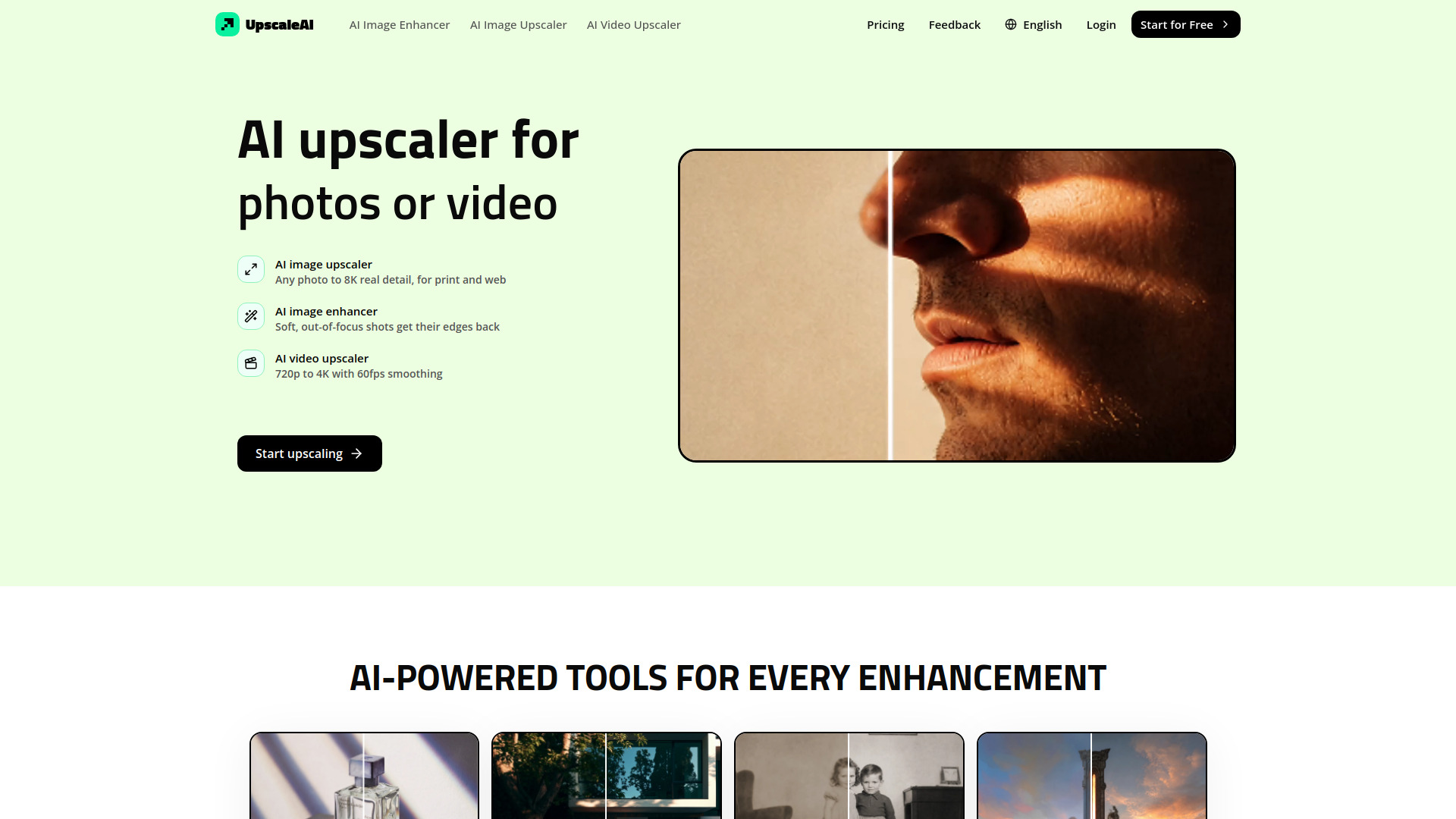
UpscaleAI is an AI-powered tool that upscales and enhances photos and videos. It can enlarge images up to 8K and videos up to 4K with 60fps smoothing, using Topaz models to rebuild real detail rather than simply stretching pixels. The platform offers specialized tools for sharpening, denoising, restoring old photos, enhancing faces, upscaling anime, and improving text clarity.
How to use UpscaleAI
- Go to the UpscaleAI website and click "Start upscaling" or navigate to the specific tool you need (e.g., AI Image Upscaler, AI Video Upscaler).
- Upload your image or video file. The platform supports various file types and resolutions.
- UpscaleAI automatically matches your file to the appropriate AI model—no manual settings or model selection required.
- Preview the enhanced result using the built-in before/after comparison tool.
- Download the upscaled file for print, web, or client work.
Features of UpscaleAI
- AI Image Upscaler: Enlarge photos from 2x to 8x, up to 8K resolution, with real detail reconstruction.
- AI Video Upscaler: Convert 720p footage to crisp 4K, denoised and smoothed to 60fps.
- AI Image Enhancer: Recover sharpness and clarity from soft or out-of-focus shots.
- Old Photo Restorer: Rebuild scratched, faded, or water-damaged photos to like-new condition.
- Face Enhancer: Sharpen facial features in portraits and group photos without altering identity.
- Anime Upscaler: Enlarge anime frames and manga panels up to 4x while preserving clean line art.
- Text Upscaler: Enlarge screenshots, scans, and documents while keeping text crisp and legible.
- Denoise: Remove grain and noise from high-ISO or low-light images.
- Colorizer: Add natural color to black-and-white photographs.
- Background Remover: Isolate subjects with one click.
- Image Unblur: Reverse motion blur and camera shake.
- Add Detail to AI Images: Inject realistic texture into AI-generated art.
- Batch Processing: Upscale multiple files at once.
- Auto-Model Selection: The platform automatically chooses the best Topaz model for each file.
Use Cases of UpscaleAI
- Photographers: Enlarge and sharpen portraits, product shots, and event photos for print or web.
- Designers: Upscale AI-generated art, posters, and packaging to print-ready resolution.
- Video Creators: Enhance old family tapes, gameplay footage, and compressed social media clips to 4K.
- Historians & Genealogists: Restore and colorize old, damaged family photographs.
- Anime Fans: Upscale anime frames and manga panels for wallpapers or posters.
- Businesses: Clean up scanned documents, receipts, and signage for reuse.
- Social Media Users: Improve low-resolution selfies and group photos.
Pricing
UpscaleAI offers a free tier to start. Paid plans are available for higher usage limits and additional features. Specific pricing details can be found on the Pricing page.
FAQ
How do I upscale an image or video?
Upload your file to the UpscaleAI website, and the platform automatically applies the best AI model. No manual settings are needed.
What files and resolutions can I upscale?
UpscaleAI supports various image and video formats. Images can be upscaled up to 8K, and videos up to 4K at 60fps.
Will my results look real, or AI-fake?
The AI rebuilds real texture and edges, so enhanced files look natural rather than filtered or artificial.
Is UpscaleAI the best AI upscaler for images and video?
UpscaleAI uses Topaz models to deliver professional-quality upscaling with automatic model selection for optimal results.
Do I have to pick a model or tune settings?
No. UpscaleAI automatically matches each file to the right model—no settings to adjust.
How do you handle my files, and can I use results commercially?
File handling and commercial usage rights are covered in the Terms and Privacy policy.