What is Imagen3D
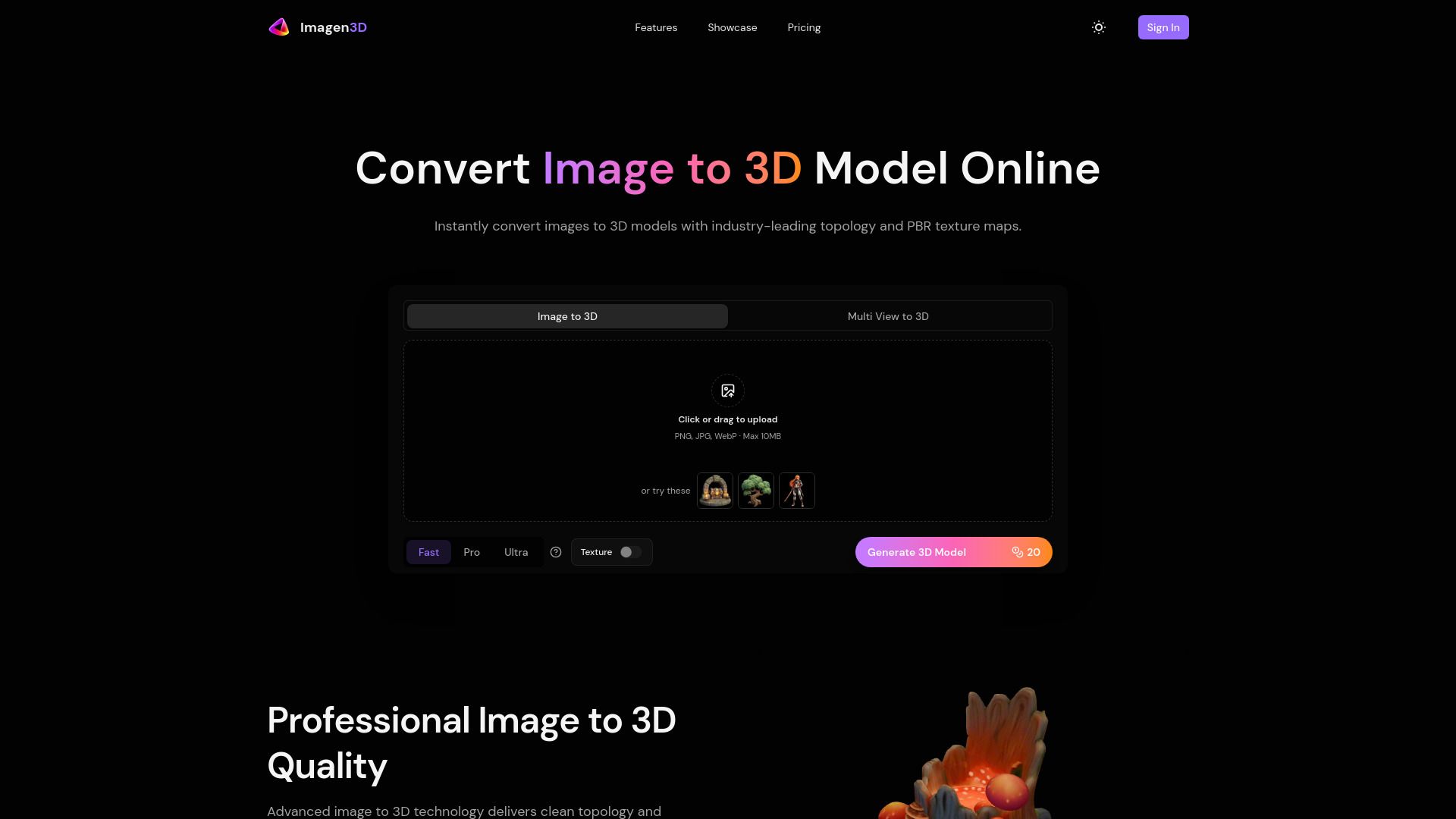
Imagen3D is an AI-powered tool designed to convert images into high-quality 3D models. It offers advanced technology for generating clean topology and studio-quality geometry directly from images, with PBR texture maps.
How to use Imagen3D
- Upload Image: Click or drag an image file (PNG, JPG, WebP, max 10MB) into the designated area. You can also choose from provided showcase examples.
- Choose Quality Tier: Select between 'Fast' (approx. 20-40 seconds), 'Pro' (approx. 30 seconds with textures), or 'Ultra' (approx. 2-3 minutes with advanced PBR materials).
- Generate 3D Model: Click the 'Generate 3D Model' button. The system will process your image to create a 3D model.
- Export & Use: Download the generated model in various formats like GLB, OBJ, STL, GLTF, USDZ, or as an MP4 preview.
Features of Imagen3D
- AI-Powered Conversion: Transforms images into 3D models using advanced AI.
- High-Quality Geometry: Produces clean, manifold geometry with proper edge flow.
- PBR Texture Maps: Generates Albedo, Normal, Roughness, and Metallic maps for realistic rendering (available in Ultra mode).
- Multiple Quality Tiers: Offers 'Fast', 'Pro', and 'Ultra' modes to balance speed and detail.
- Flexible Export Options: Supports standard formats including GLB, OBJ, STL, GLTF, USDZ, and MP4.
- Multi-View Input: Pro and Ultra modes can utilize multiple photos for improved accuracy.
- Fast Generation: Models are generated quickly, with options completing in under 3 minutes.
Use Cases of Imagen3D
- Game Development: Rapidly create 3D assets for game prototypes and production.
- 3D Printing: Generate printable models from product photos for manufacturing workflows.
- Animation & VFX: Accelerate animation pipelines by creating 3D assets for use in software like Maya, Blender, or Cinema 4D.
- AR & VR Experiences: Build immersive environments with realistic 3D objects for deployment in Unity or Unreal Engine.
Pricing
The webpage mentions "20" credits associated with the "Generate 3D Model" button, suggesting a credit-based system or a cost per generation for certain tiers.
FAQ
- How long does it take to convert an image to 3D model? Generation time varies by quality tier: Fast mode (20-40 seconds), Pro mode (approx. 30 seconds with textures), and Ultra mode (2-3 minutes with PBR materials). All options complete in under 3 minutes.
- Which quality tier should I choose? Fast mode is for rapid iteration, Pro mode for most production workflows with textures, and Ultra mode for maximum detail and PBR materials.
- What file formats can I export? Supported formats include GLB, OBJ, STL, GLTF, USDZ, and MP4 video previews.
- Do generated models include textures and materials? Fast mode provides geometry only. Pro mode offers optional textures. Ultra mode includes high-quality textures by default, with an option for PBR materials.
- Can I improve accuracy with multiple photos? Yes, Pro and Ultra modes support multiple images (1-4) for significantly better geometry and texture accuracy.
- Will the 3D model be perfect? The tool creates excellent starting points. For professional use like game production, minor refinements in 3D software might be needed.
- What types of images work best? Clear, well-lit photos of single objects on simple backgrounds work best. Higher resolution images are recommended.
- What are PBR materials? PBR (Physically Based Rendering) materials provide realistic surface properties for professional rendering, including albedo, normal, roughness, and metallic maps.
- Do I own the commercial rights? Yes, all generated models belong to you with full commercial rights, provided you own the rights to the original input images.
- How do I import and use the model? Download your preferred format and import it directly into your 3D software (e.g., Blender, Unity, Unreal Engine).